


 Voyager Suite
 Breeze
 Virtuoso
 Investment Suite
 RentCafe
 CommercialCafe Suite
 Elevate Suite
 Procure to Pay Suite
  Energy Suite
 Aspire
 RightSource
 Care Suite
 Matrix
 WorkCafe
 Yardi Kube Suite
 ScreeningWorks Pro
  Yardi Corom




















I’m late to the party on discovery of this feature, as it was widely published back in 2010. Checking with colleagues in the tech field, none of them had seen this before. Perhaps you missed it, too. With that in mind, here’s how, in a matter of seconds, to create your God Mode folder. For those IT professionals concerned about a feature termed “God Mode”, there is no new Windows features or settings exposed through this trick, other than the trick itself. It is harmless but incredibly useful.
Here we go:
1) Right click on your Desktop
2) Create a New Folder
3) Rename the folder: GodMode.{ED7BA470-8E54-465E-825C-99712043E01C}
4) The folder icon will now change:
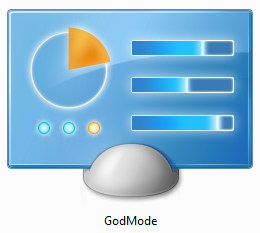
5) Double click the new folder. Enjoy.
It appears this works with Windows 8 as well.
Get more details in a CNET instructional video.
Ina Fried, the author of the CNET article, had an exclusive interview with Steven Sinofsky, the President of Windows at Microsoft until last month. In that conversation, Sinofsky divulged that many more GUID shortcuts exist in Windows. We’ll leave you to discover those yourself. Have you used any of the shortcuts? Which have been the most helpful to you?